How to check a transaction in a block explorer
A transaction hash is your transfer receipt. Here’s where to find it and what the statuses on Tronscan, Etherscan and mempool mean.

A blockchain is a public database: every transfer sent on Bitcoin, Ethereum, TRON or any other open network is recorded in it forever, and anyone can check it. You don’t need accounts or permissions — just the transaction hash and a block explorer.
Being able to read a transaction page saves a lot of worry: you know exactly whether the money left, where it went, how much and when, what the fee was and why the recipient doesn’t see it yet. In this article we cover where to find the hash, which explorer to open for each network, what each field means and how to make sense of the most common confusing situations.
What a transaction hash is and where to find it
A transaction hash, or TXID (Transaction ID), is a unique string of letters and digits that unambiguously identifies a transfer on the blockchain. On Bitcoin it’s 64 characters; on Ethereum and compatible networks it’s “0x” followed by 64 characters. No two hashes are alike.
You can find the hash in several places:
- A non-custodial wallet. Open the transaction history and tap the transfer. The details will show the hash or a “View in explorer” button.
- An exchange. In the withdrawal history, each withdrawal has a TXID or Hash field. It appears once the exchange has actually sent the transfer.
- A swap service. After the payout, the transfer hash is usually shown on the order page and in the notification.
The hash isn’t a secret. You can safely share it with support or the recipient: it can’t be used to steal funds, only to view the transfer details.

Which explorer to open
Every network has its own explorer. If you search for a TRON transaction on Etherscan, you’ll find nothing, even if the transfer went through.
| Network | Explorer | What the hash looks like |
|---|---|---|
| Bitcoin | mempool.space | 64 characters, no prefix |
| Ethereum and ERC20 tokens | etherscan.io | “0x” plus 64 characters |
| TRON and TRC20 tokens | tronscan.org | 64 characters, no prefix |
| BNB Smart Chain and BEP20 | bscscan.com | “0x” plus 64 characters |
| Litecoin | litecoinspace.org | 64 characters, no prefix |
| TON | tonviewer.com | A hash or a message link |
| Solana | solscan.io | A long base58 signature |
Ethereum and BNB Smart Chain hashes look identical, so if a transaction isn’t found in one explorer, try the other — that’s often how people discover the transfer went to the wrong network.
Reading a transaction page
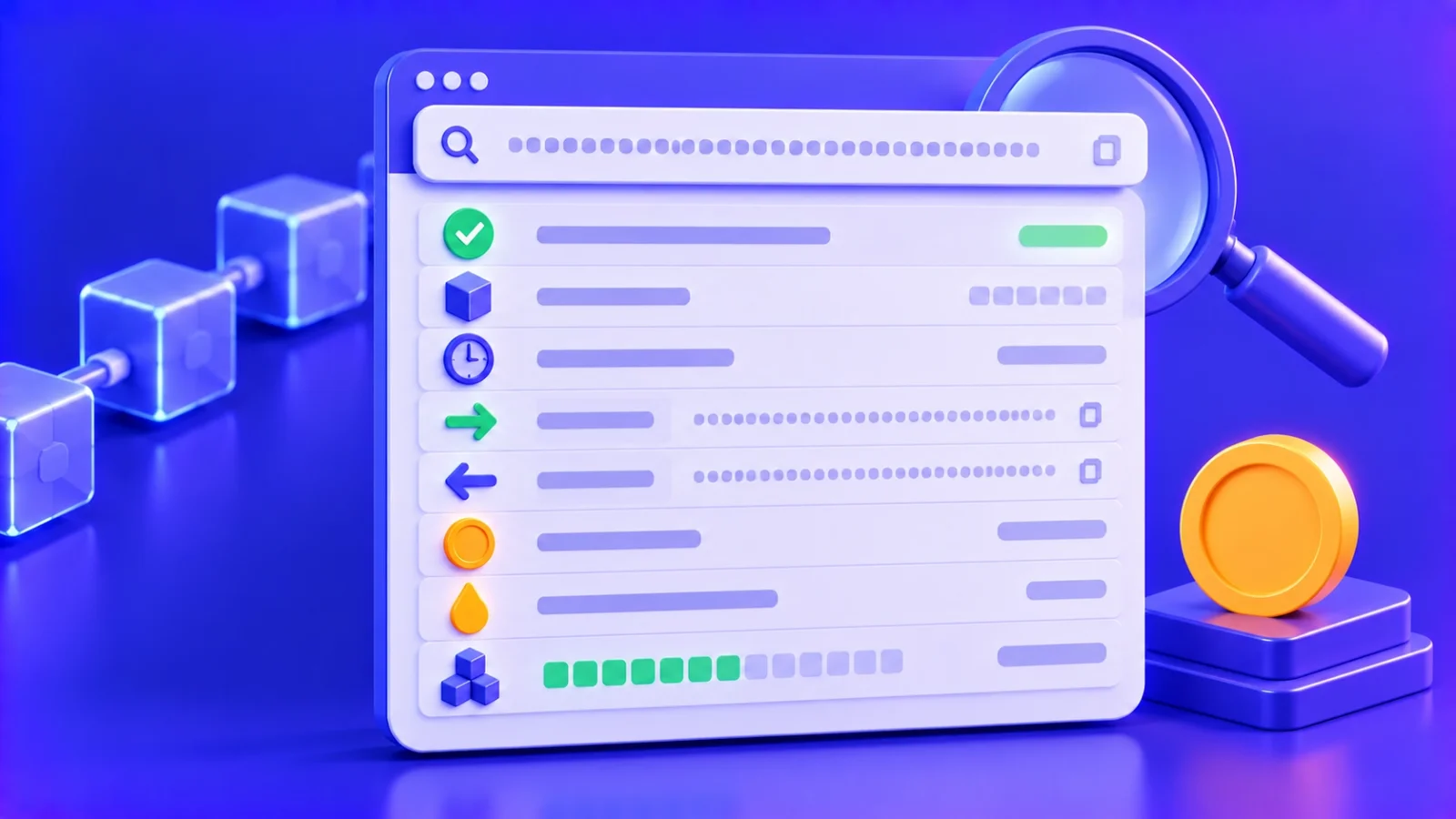
Explorer interfaces differ, but the main fields are everywhere.
| Field | What it means | What to look for |
|---|---|---|
| Status | The outcome of the transaction | Success / Confirmed — all good; Pending — waiting; Failed — didn’t go through |
| Block | The number of the block containing the transaction | No block means the transaction is still in the queue |
| Timestamp | When it was included in a block | Helps match the transfer against an order timer |
| From | The sender’s address | Should be your address or the exchange you withdrew from |
| To | The recipient’s or contract’s address | For tokens this is the contract, not the recipient |
| Value / Amount | The amount transferred | Should match what you sent |
| Fee | The network fee | What the transaction cost in the network’s coin |
| Confirmations | Blocks after the transaction’s block | The more, the more reliable the transfer |
The quirk of token transfers
A transfer of USDT, USDC or other tokens on Ethereum, TRON or BNB Smart Chain is technically a call to the token’s smart contract. That’s why the “To” field on the transaction page shows the token contract’s address and “Value” shows zero of the native coin. This is normal and doesn’t mean something went wrong.
The actual recipient and token amount appear in a separate section: on Etherscan and BscScan it’s called “ERC-20 Tokens Transferred” or “Token Transfers”, on Tronscan “Token Transfer”. That’s where to look when checking a USDT transfer.
Transaction statuses and what they mean
| Status | What’s happening | What to do |
|---|---|---|
| Pending / Unconfirmed | The transaction is queued and not yet in a block | Wait; on Bitcoin, speed it up with RBF if needed |
| Success / Confirmed | The transaction is in a block and executed | Watch the confirmation count if the recipient requires it |
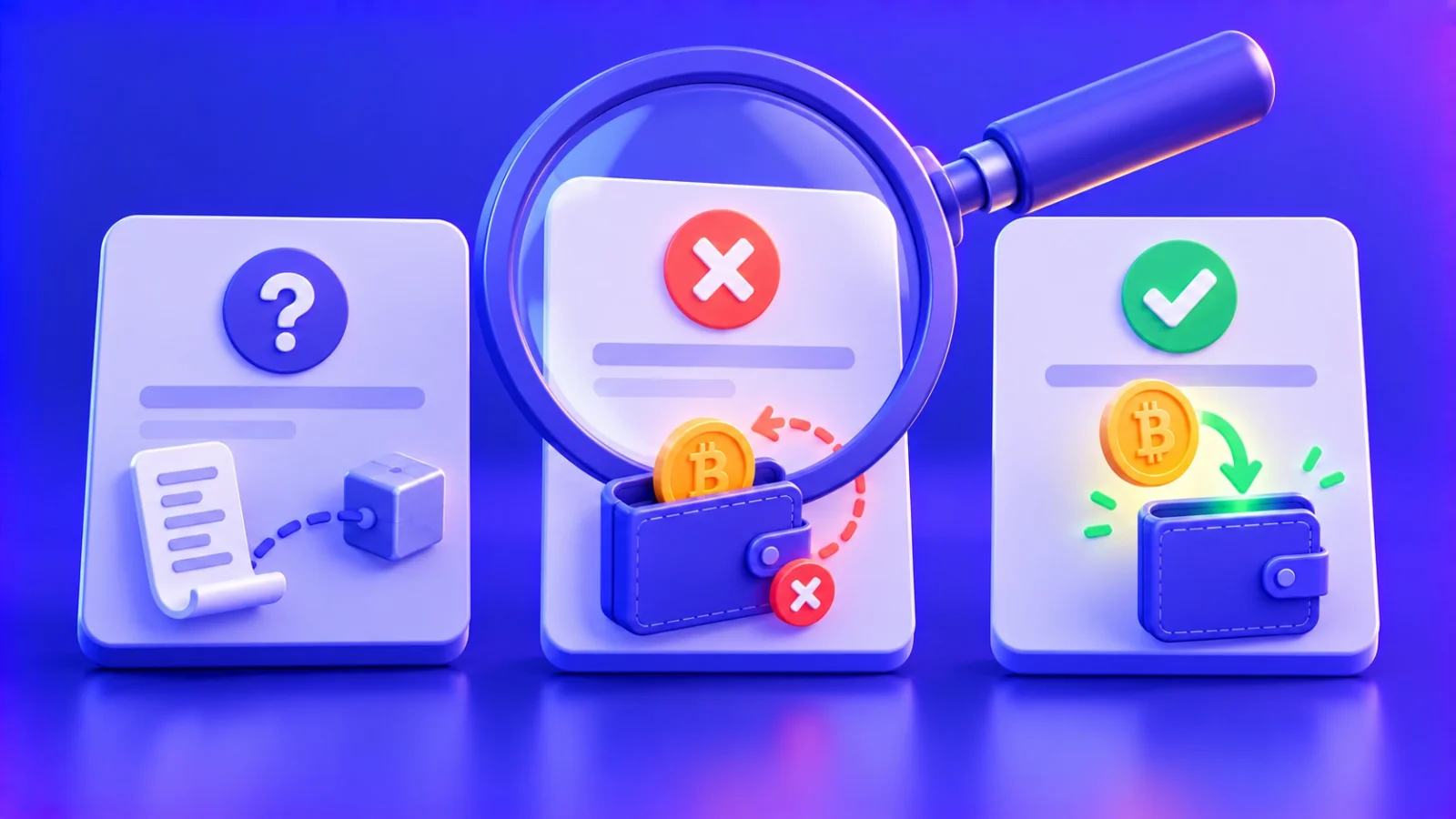
| Failed / Reverted | The transaction was included in a block but didn’t execute | Your funds stayed with you, only the fee was charged; send again |
| Dropped / Replaced | The transaction was removed from the queue or replaced | Check whether the replacement went through; resend if needed |
“Failed” is most common on Ethereum and TRON: the transaction ran out of gas or energy, or the smart contract rejected the operation. The money doesn’t reach the recipient, but the fee for the attempt is charged.
Common situations and how to handle them
The transaction can’t be found
There are usually three reasons. First, you’re searching the wrong network’s explorer. Second, the transfer hasn’t been sent yet: the exchange shows “processing” but there’s no hash. Third, a transaction with a very low fee was dropped from the queue. Start by checking the network, then confirm the withdrawal status on the exchange.
The status is Success, but the recipient doesn’t see the money
Check that the network matches what the recipient expected and that the address is correct. If everything matches, the recipient may still be waiting for the required confirmations, or their wallet simply doesn’t display the token — it can be added manually using the contract address.
The amount is less than I sent
Most often this is the exchange’s withdrawal fee: many exchanges deduct it from the amount you enter. The explorer shows the amount that actually went onto the blockchain.
The transaction failed, but money was deducted
Only the network fee for the execution attempt was charged. The main amount stayed at your address — check the balance in the explorer.
Step by step: checking a transfer on three popular networks
The common fields are the same, but each network has details worth knowing. Let’s go through the three most common cases.
USDT TRC20 on Tronscan
- Open tronscan.org and paste the hash into the search bar.
- Make sure the Result field says SUCCESS and the Status field says Confirmed.
- Find the Token Transfer section: it shows the sender, the recipient and the USDT amount.
- Click the token name and check that the contract is TR7NHqjeKQxGTCi8q8ZY4pL8otSzgjLj6t.
- In the resources section, see how much energy and TRX the fee consumed.
Bitcoin on mempool.space
- Paste the hash into the search on mempool.space.
- Check the status: “Unconfirmed” or the number of confirmations.
- Review the transaction outputs: one is the recipient, the other is usually change returned to your address.
- If the transaction is unconfirmed, compare its fee rate with current recommendations and estimate the waiting time.
ERC20 on Etherscan
- Paste the hash into the search on etherscan.io.
- Check the Status: Success, Pending or Fail.
- In the ERC-20 Tokens Transferred section, find the recipient and the token amount.
- The Transaction Fee field shows how much ETH went on gas, and Gas Used shows how much gas was actually spent.
- If a transaction stays Pending for a long time, note the Nonce field: the next transaction from your address won’t go through until this one does.
How to share a transaction with support
It’s best to send not just the hash but a direct link to the transaction page in the explorer, so the operator doesn’t have to guess which network to search. Add the order number, the amount and the network you sent on. Wallet screenshots are useful as a supplement but don’t replace the hash: a screenshot can’t prove the transfer actually made it onto the blockchain.
How to check a wallet address
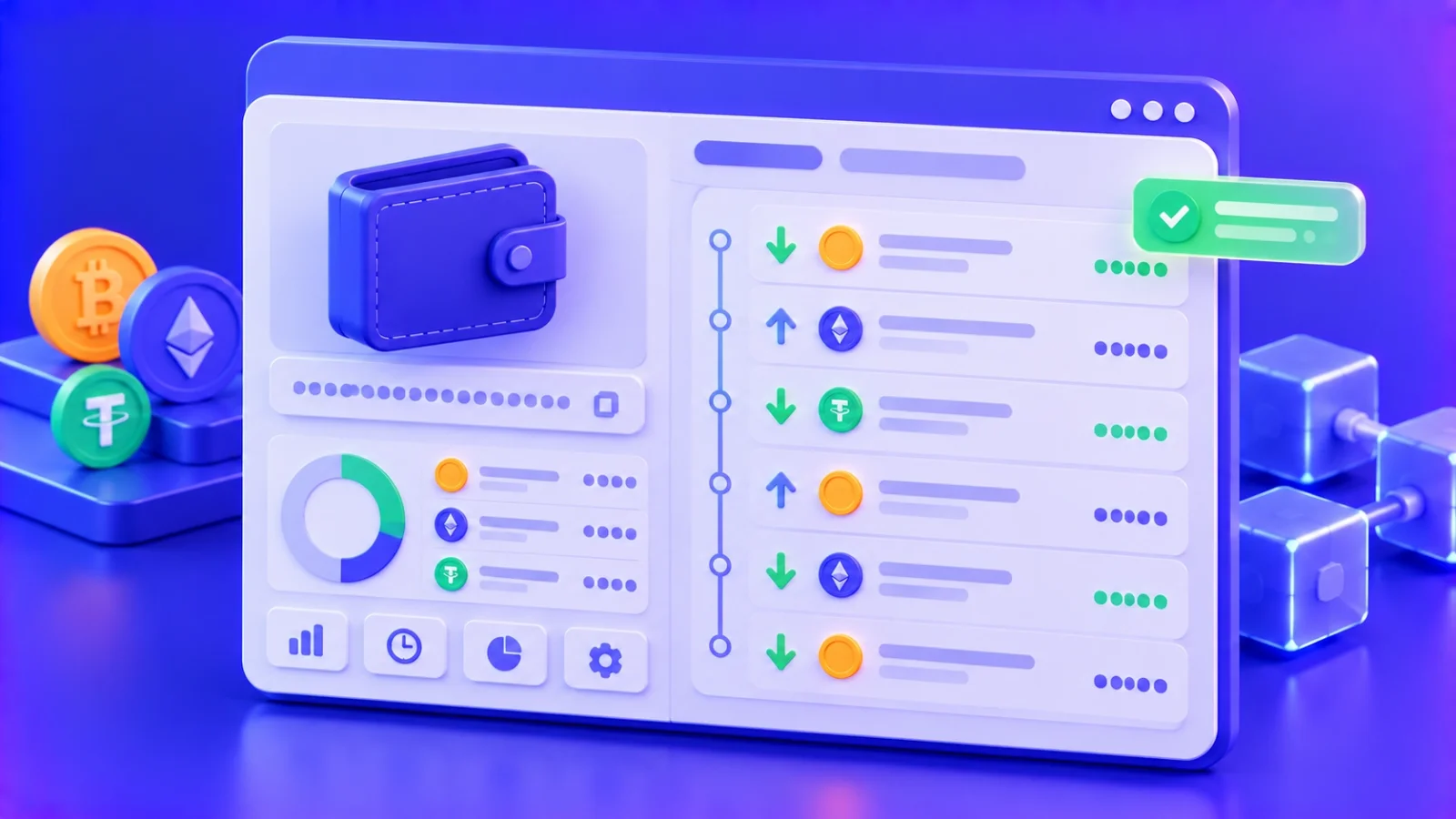
An explorer shows addresses as well as transactions. Paste an address into the search and you’ll see the balance of the native coin and tokens, the full history of incoming and outgoing transfers and, on some explorers, labels for known addresses such as major exchanges.
This is useful to confirm that an address exists and is active, to check that a transfer really reached the recipient and to spot suspicious activity — for example, tiny transfers from look-alike addresses used in address poisoning.
Why a swap service needs the hash
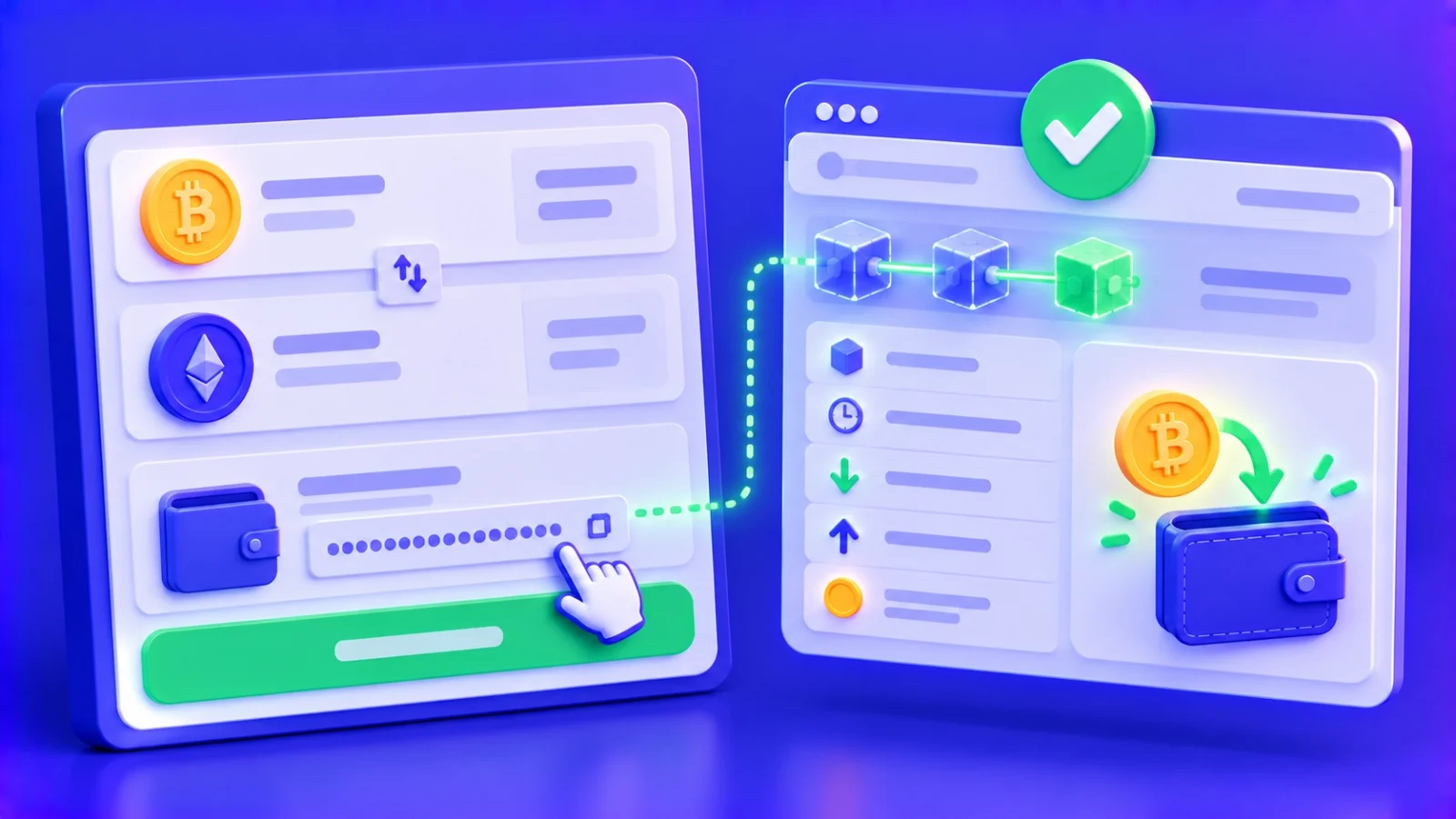
When exchanging crypto, the hash works like a receipt. Once you’ve paid an order, enter the transaction hash when pressing “I’ve paid” or pass it to support. The operator will find your transfer among others in seconds, check the amount, network and confirmations and move to the payout faster.
At ROVEN exchange, after the payout the transfer hash appears on the order page and in the Telegram notification. Tap it to open the right network’s explorer and see for yourself that the funds were sent to your address.


Frequently asked questions
Can the hash tell me who sent a transfer?
You can see the sender’s address, but not the owner’s name. The blockchain stores addresses, not personal data. If the address belongs to an exchange, though, the explorer sometimes shows its label.
Is it safe to share a transaction hash?
Yes. The hash only lets someone view the transfer details. It can’t be used to access a wallet or send funds.
Why does the dollar amount in the explorer differ from mine?
Explorers convert at the current rate or the rate at the time of the transaction. Go by the amount in coins — that’s what matters for the transfer.
How many confirmations are needed for a transfer to count as complete?
It depends on the network and the recipient. On TRON a transfer is reliable after about a minute; on Bitcoin, swap services usually wait for 1–3 confirmations. The receiving service states its exact requirement.